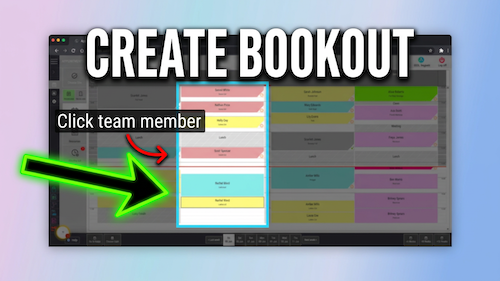
Video walkthrough: changing the colour assigned to a bookout reason in the Salon Manager diary.
Quick answer
Edit the bookout reason and choose a new colour
Open Add Bookout from an empty diary slot, edit the relevant bookout reason, choose the new colour, then select Confirm.
Before you start
Check these details first
Access to the diary
Permission to update bookout reasons or colours
The bookout reason that needs to change
Step-by-step instructions
How to change a bookout colour
Follow these steps to update the colour used by a bookout reason in the diary.
Useful tips
Choose colours that are easy to distinguish
Use different colours for different types of bookout so the diary is easier to read.
Choose colours that are clear but not too similar to appointment colours.
Check an existing or new bookout after the change to confirm it displays correctly.
Troubleshooting
Common issues and what to check
Frequently asked questions
Bookout colour questions
Can I change the colour of a bookout reason?
Yes. Edit the bookout reason and choose a new colour.
Where do I access bookout reasons?
Select an empty diary slot, then choose Add Bookout.
Can different bookout reasons have different colours?
Yes. Edit each reason and choose the colour you want it to use.
Offline reference
Download this guide as a PDF
Keep a printable copy for reception teams or use it during staff training.
Last reviewed: 16 June 2026.